Home/How to Watch TeraBox on Smart TV (Browser + Cast Methods)
Guide
How to Watch TeraBox on Smart TV (Browser + Cast Methods)
By FileSnag Team · Oct 06, 2026 · Updated: Oct 15, 2026 · 3 min read
Short answer
Method 1: open the link in your TV's browser
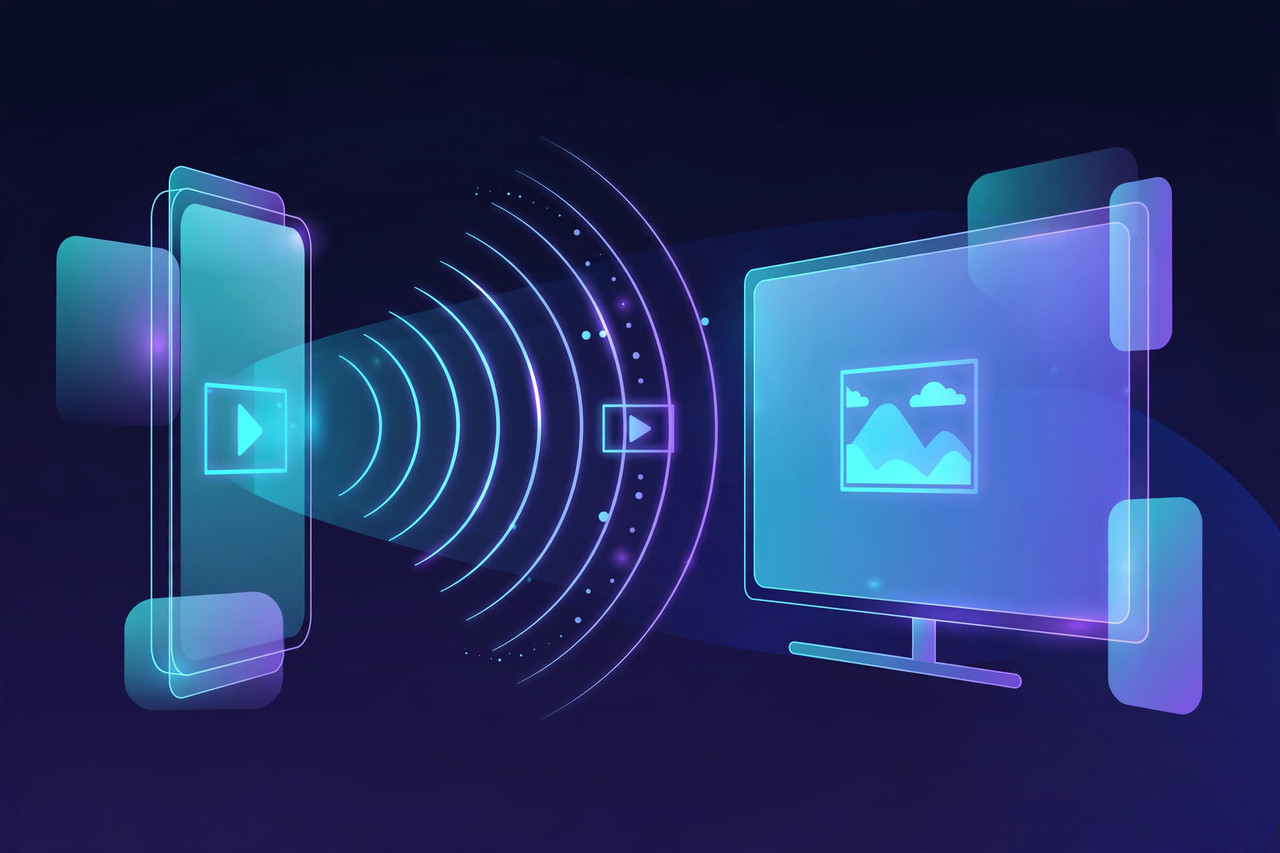
You can watch TeraBox videos on a Smart TV without installing anything, two ways: (1) open the TV’s built-in browser, paste the share link into FileSnag, and stream it with Watch online; or (2) download the video on your phone and cast it to the TV. Both take just a few minutes.
Method 1: Watch in the TV’s browser (easiest)
Most Smart TVs (Samsung Tizen, LG webOS, Android TV / Google TV) ship with a web browser:
Open the TV’s browser app (often called “Internet” or “Browser”).
Go to filesnag.com — type it with the on-screen keyboard or use your phone as a keyboard if your TV supports it.
Paste the TeraBox share link. Tip: send the link to yourself on WhatsApp/Telegram, open that chat on the TV browser, and copy it from there — much easier than typing a long URL.
Hit Snag It, then Watch online on the result card. The video streams right on your TV — no app, no login.
If the TV browser struggles with the page, try its “Desktop mode” setting, or move to Method 2.
Make sure your phone and TV are on the same Wi-Fi network.
Chromecast / Google TV: open the video in your phone’s gallery or Chrome and tap the Cast icon, choosing your TV.
Samsung / LG / Mi TV: use the TV’s screen-mirroring option (Smart View on Samsung, Miracast / Wireless Display on others) and play the video on your phone — it appears on the big screen.
Fire TV Stick: same idea — mirror from your phone, or use the Silk browser on the Fire Stick itself.
Which method is better?
Method 2: cast from your phone to the TV
TV browser: fastest when it works — no phone battery drain, no second device. Best for Android TV / Google TV, whose browsers handle modern sites well.
Casting: more reliable on Samsung Tizen and LG webOS, whose built-in browsers can be sluggish. Also better for 4K files, since the phone does the heavy lifting.
Troubleshooting TV playback
Video won’t load in the TV browser: update the TV’s software, try Desktop mode, or switch to casting.
Buffering: move the TV closer to the router or use a wired connection; lower the stream by downloading first, then playing the file.
No sound: check the TV isn’t muted and the video actually has an audio track (some shared clips don’t).
Link expired: share links die after a while — get a fresh one; our expired-link guide explains why.
Frequently asked questions
How can I watch TeraBox on Smart TV without the app?
Open your TV’s web browser, paste the TeraBox link into FileSnag, and use Watch online — or download on your phone and cast to the TV. No TeraBox app needed on the TV.
Is there a TeraBox app for Samsung or LG TVs?
No official TeraBox TV app exists. The browser and casting methods above are the practical workarounds.
Can I download directly onto the TV?
On Android TV / Google TV, yes — the browser can download the file to the TV’s storage. On Samsung/LG, downloading is limited, so casting from your phone works better.
Will 4K TeraBox videos play on my TV?
If your TV supports 4K and the original file is 4K, yes — download the original-quality file (FileSnag never compresses) and play or cast it.
A TeraBox Premium account is not a separate kind of login. It is your ordinary TeraBox account with an active Premium subscription attached to it. That one detail…
Learning how to watch TeraBox videos offline is the difference between a video you can enjoy anywhere and a video that only exists while your Wi-Fi holds up.…
How to Change TeraBox Email: What Actually Works (2026 Guide) Wondering how to change TeraBox email because you lost access to your old inbox, switched to a new…





One comment